Welcome to Rateme.Club
The RateMe.club portal is an intuitive online platform designed to help merchants manage their customer engagement tools effortlessly.
- Accessible at https://rateme.club, it welcomes users with a friendly Main dashboard featuring a sidebar for quick navigation.
- Update your profile on the Account Management page.
- Link venues via the Venue Management page.
- Assign QR codes or NFC tags through the User Tags page all in one place.
The portal shines with the Review Reports page, offering colourful charts to track scans and customer redirects over time.
New users sign up at the Register page, log in securely via the Secure Login page, and recover passwords with the Forgot Password page if needed.
A Welcome page greets you with news and tips, while the whole site adapts smoothly to any device.
It's free to use, with no subscription hassles, and keeps everything-account settings, venue details, and analytics-at your fingertips, making it a breeze to boost your business's online presence.
- Go to https://rateme.club and register a new account or login to your existing account.
-
Navigate to the Tags page. Using the Tag Number and PIN on your sign or card, click Adopt to register it.

- In the settings, lock and enable your tag.
- Log out and then log back in.
- Go to the Find Business page, search for your Google Business, and when you have found it, click the + Create Venue button.
- Go to the Venues page to confirm your details.
- Go to the Tags page and change the Attached Site from Unassigned to your new venue name.
- You're all set! Scan your sign to confirm it directs to the correct Google review page.
- You can now add other Reviewers and URLs as desired.
- If you encounter any issues, please review the steps above. If problems persist, contact us at support@rateme.club for assistance.
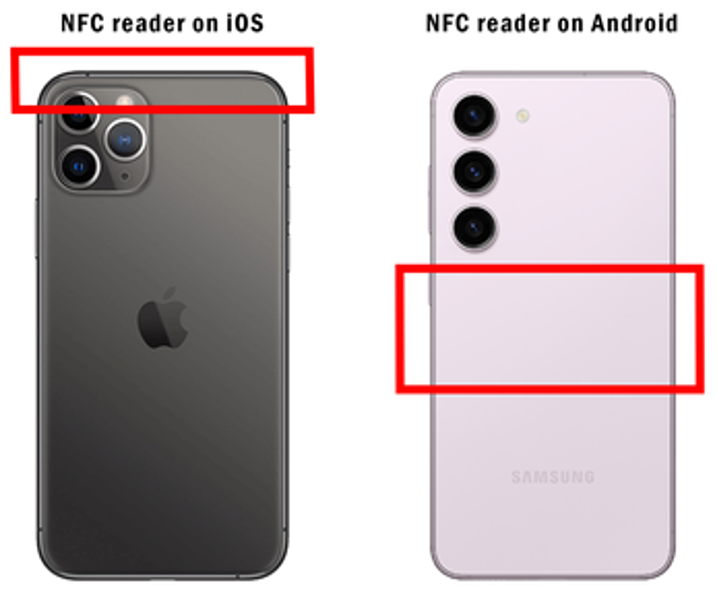
Different phones have their NFC readers in different locations. Generally, iPhone NFC readers are near the top of the phone, while Android phones often have them in the center.
The NFC chip in all Rateme.club cards is in the center of the card.
UV-DTF (Direct to Film) decals are vibrant, durable stickers that can be applied to smooth surfaces like cups, tumblers, glass, and more. The adhesive is very strong, so careful placement is crucial-once applied, the decal cannot be repositioned.
- Preparation
- Do not use alcohol to clean the surface, as it can break down the adhesive and prevent sticking.
- Do not use frosted or sublimation glass; the decal may not adhere properly.
- Ensure the surface is clean and dry. Wash with soap and water, then dry thoroughly. Remove all dust and debris.
- Application Steps
- Trim the Decal (if needed): Cut away any excess clear carrier sheet to avoid overlapping.
- Peel and Position:
- Peel back about 1 inch of the backing to expose a small section of adhesive.
- Use scissors to cut away about 1 cm of the backing, exposing just enough adhesive to anchor the decal.
- Carefully wrap the decal around your item (e.g., cup) using the unexposed part to help position it.
- Be very careful: Once the adhesive touches the surface, it cannot be moved or adjusted.
- Secure the Initial Edge: Once you're happy with the placement, gently press down the small exposed adhesive area to anchor the decal.
- Apply the Rest of the Decal:
- Place the item on a hard, flat surface.
- Slowly peel away the rest of the backing while rolling the decal onto the item, smoothing as you go to avoid bubbles and wrinkles.
- Use your fingers, palm, or a squeegee to firmly press the decal onto the surface, working from the center outward.
- Spend 3 to 5 minutes applying pressure, using your hand's warmth to help activate the adhesive.
- Remove the Transfer Film: Slowly and carefully peel off the clear transfer film from the decal. If any part lifts, press it back down and continue peeling gently.
- Final Steps:
- Smooth out any remaining bubbles with your fingers or a squeegee.
- Do not wash or use the item for 24 to 48 hours to allow the adhesive to fully cure and bond.
- Additional Tips
- Hand wash only; UV-DTF decals are not dishwasher or microwave safe.
- See video instructions here, before you apply your sticker: Instructions